Step 1: Sign into your CharityVillage employer account here.
Don't have an account with us? Scroll down the sign in page and click the green EMPLOYER button to get started.
Step 2: Once you are signed in, click Post a Job/Volunteer Listing from the menu on the left.
Step 3: Scroll down and select Volunteer Posting and then click Continue.
Step 4: Select the type of posting you wish to use. Click here to read more about the different posting options.
Once you've made your selection, click CHOOSE. For this example, we will select the first posting option - Job or Volunteer via template.
Step 5: Scroll down the page and filling in the information for your volunteer posting. The fields marked with a red (*) are required.
1 Title: Enter the title of the position are you are posting for. If you are posting a bilingual position, enter both titles and separate with a forward slash ( / ). Please check the accuracy of the title as it cannot be changed once your posting has been submitted.
2 Description: Type or copy the information about the position, qualifications, etc., into the box.
3 Generate with AI: If you would like to try generating your position description using the built in AI tool, enter the job title and/or enter the information about the position in the description box before clicking the Generate with AI button. However, you can simply enter the listing title before clicking the button.
Use this button ONLY if you want help from AI to create your description.
4 Video: Want to share a video to include at the top of your listing? Enter the Youtube or Vimeo link in this field.
5 Work Type: Choose the location where the individual must complete their duties.
Onsite - This position is office-based. A country or state/province is required.
Fully Remote - This position is strictly home-office based. You will still be required to enter a location in the Location field (e.g. Canada if you want to advertise the position across Canada and the individual is not required to live in a specific city or province)
Hybrid - This position is both office and home-based (flexible location). A country or state/province location is required. Input the location(s) in the next field called, Job Location.
6 Location: Enter one or more locations for this field.
7 Employment Type: Select Unpaid Volunteer Position located at the bottom of the drop down menu.
8 Job Categories: Select the job category or categories from the drop down menu to further define your position.
9 Required Career Level: Select the career level for your position.
10 Years of Experience: Select the ideal years of experience a candidate should have for the position.
11 Salary Range: Leave blank, as you are posting an unpaid volunteer position.
12 Duration (specific to volunteer positions): Choose the time frame required to volunteer for this position.
13 Required Languages: Select the language(s) required for the volunteer to complete their duties
14 Required Skills: Select the required skills a volunteer needs to complete their duties
15 Publishing Date: Select the date you wish your volunteer listing to appear on the CharityVillage Volunteer Board. Please ensure this date is accurate, as it cannot be changed once you have submitted it to go live.
16 Application Deadline: The number 60 is the maximum number of days your listing can be live on CharityVillage. Adjust the number if you wish to remove your listing soonerand a message will pop up on the posting form indicating the date your listing will be removed.
Example:Based on the start date and runtime, the job will go offline on 6/30/2025.
17 & 18 How to Apply: Select from one of the three options how you wish to receive applications.
a) Use Quick Apply - Candidates will apply directly via the email address you provide under the Application email field in the next section of the posting form. You will also be notified when an applicant applies and you can manage the applications in your CharityVillage account.
Important note, additional email addresses you add in the application email field below will not be able to access your CharityVillage account unless they have been added as an additional user.
b) Manage job application using the CharityVillage integrated Applicant Tracking System - manage applications in your CharityVillage account.
c) Add an external URL to direct applicants from the Apply button to your webpage - If you would like to redirect applicants to a specific webpage to apply as an example, enter it in this field.
19 Which of the Quick Apply Features would you like enabled? Quick Apply allows you to select the mandatory requirements that a candidate must complete to submit their application. e.g Resume, Cover letter and screening questions.
If you click to add screening questions, the Questions section will appear below. Enter one or more questions and select the box under it if the question must be answered. Select the Add Another button to continue adding additional questions.
Step 6: Once you are finished filling out the posting form, click NEXT.
Step 7: Selecting one or more posting upgrades on the Posting Upgrades page is optional but highly recommended.
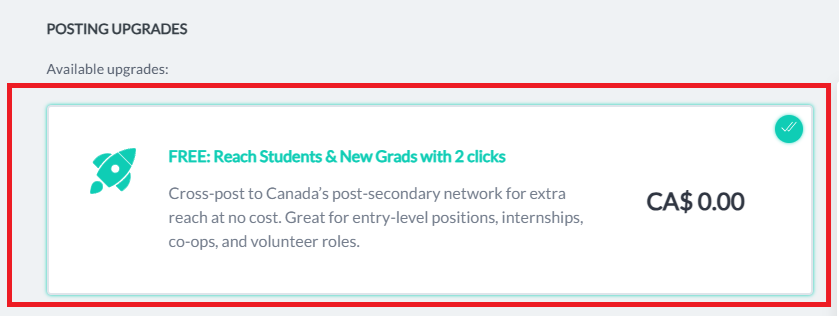
Want to reach students and new grads with your volunteer listing? Be sure to select the following option located at the top of the list.
We also recommend selecting Top Posting if you want your posting to stand out and gain the most views.
Once you've finished with this page, click NEXT.
Step 8: Fill in the billing information page even though there is a $0.00 cost to posting a volunteer listing. You will have the option later down the page to save the address to your Saved Addresses. You can then select the address from the Saved Addresses drop down menu that will appear at the top right of the page the next time you post a position.