How do I manage applications in my employer account?
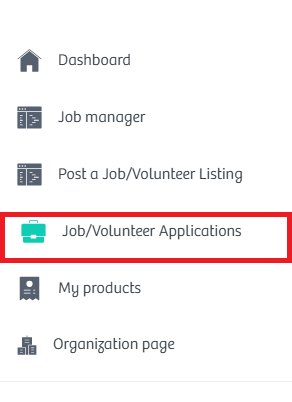
Step 1: Once you are signed into your CharityVillage employer account here, select Job/Volunteer Applications from the left hand side of your dashboard.
Step 2: This page shows all the applications submitted to your listing(s).
If you only want to review the applications for a specific job or volunteer listing, type the name of the posting into the search field at the top of the page and click SEARCH.
All the applicants will be given the status of "Applied". You can use theOptions menu from the right to change their status to help you keep track of which individuals you have reviewed, etc.
You can also choose to share a link to an individual's application with someone via the Share by email link from the drop down menu or export their application.
To export ALL applications listed on your dashboard, click the Export applications link at the top right.
To export applicants for a specific posting, enter the title of the job or volunteer listing in the search field and click the SEARCH button. Once you only see the applications for that listing, click Export applications at the top.
Step 3: Click on the name of the applicant to view the document(s) they submitted along with their contact information, etc. This page includes the same Options drop down menu that appears beside each applicants on the main Job Applications page.
Have questions? Please email help@charityvillage.com