Step 1: Click the Manage button to access the shareable enrollment link to the course you purchased. On the next page, select Copy Sign Up Link located near the top right. Copy and paste the link in an email and send it to the individual that will be taking the course. They’ll just follow a few steps to get started with the course.
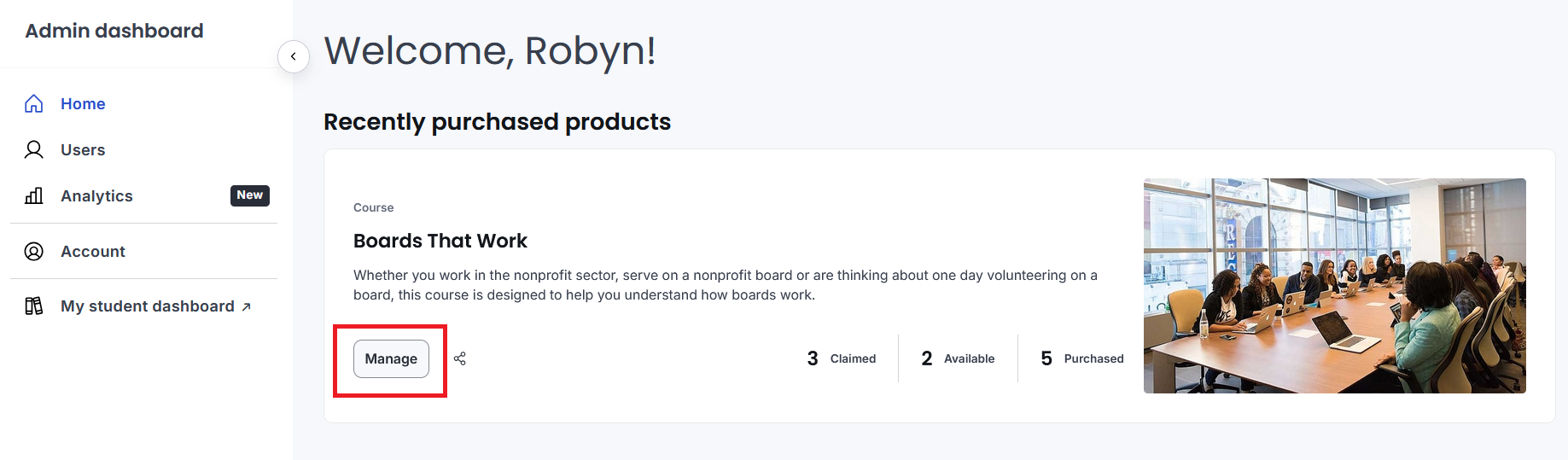
Alternatively, you can manually set up each person's access by clicking the Add User button at the top right of the page after selecting Manage. The next step will give an overview of your ADMIN eLearning dashboard including where to find the shareable link or where to enroll a user manually.
Step 2: Overview of ADMIN dashboard functionality
#1 Copy sign-up link: Click this button and then copy and paste the link into an email to share with anyone who needs access to the course. A notification will appear at the bottom left of your screen confirming a link has been copied.
If the user does not have an account, they’ll be prompted to create one. Once their account is set up, the course will appear immediately on their student dashboard.
#2 Purchase more: Need more of this same course to enroll others? Click the Purchase more button at the top right and submit payment.
#3 Add user: If you wish to enroll the user yourself in the course, click Add User. You will be prompted to enter their email and name. They will receive an enrollment email with instructions on how to set their password and access the course.
#4 Bulk import: Do you have a large number of people you would like to enroll? Click the Bulk import button to download an excel template. Add the names and email addresses to it. Follow the instructions to upload it and the system will send each person an enrollment email with instructions on how to access the course.
#5 Purchased: This number tells you how many of these courses or bundles you purchased.
#6 Available: This number represents how many you have left to assign.
#7 Claimed: This number tells you how many have been assigned/consumed.
#8 Account: To update your account details like email address or password or to view your certificate(s) if applicable, or a receipt, click Account.
To return back to your ADMIN dashboard after clicking Account, click your name at the top right and then ADMIN from the drop down.
#9 My Student Dashboard: Click My Student Dashboard to be redirected to your courses.